Library structure
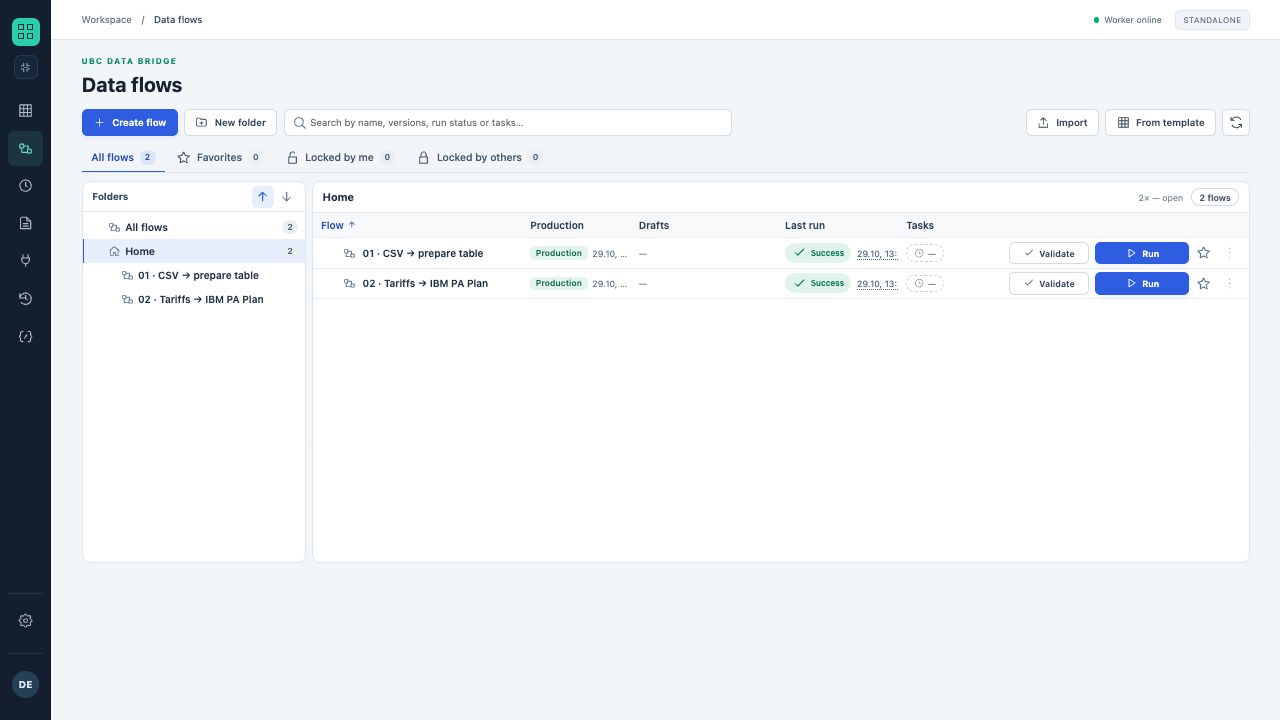
Two training flows in the library: folders on the left, Production and the most recent run result in the table on the right.
- Double-click to open a flow.
- Tabs filter all, favorite and locked objects.
“Data flows”, “File sources” and “Connections” are organized as libraries with a folder tree, object list and search. “All”, “Favorites”, “Checked out by me” and “Locked by others” tabs help narrow the list. Double-click opens an object; the context menu contains available actions.
Working with folders
- Create folders by business process or exchange area, such as “Planning / Sales”.
- Use meaningful names: source system, object and purpose.
- Select multiple items with Ctrl/⌘ or Shift and move them together when needed.
- Before copying, check whether the new flow will use the same connections and files.
Editing locks
An object opened for editing is held by a specific user. Others see “Editing: …”. Closing the editor releases the lock; if connectivity is lost, the lock has a limited lifetime. An administrator can force-release an object. An editor that loses ownership can no longer save changes.
Flow row
The library shows Production, drafts, the latest run and associated jobs. Expand a flow to select a particular draft. “Validate” and “Run” respect permissions and the availability of a published version.