Purpose
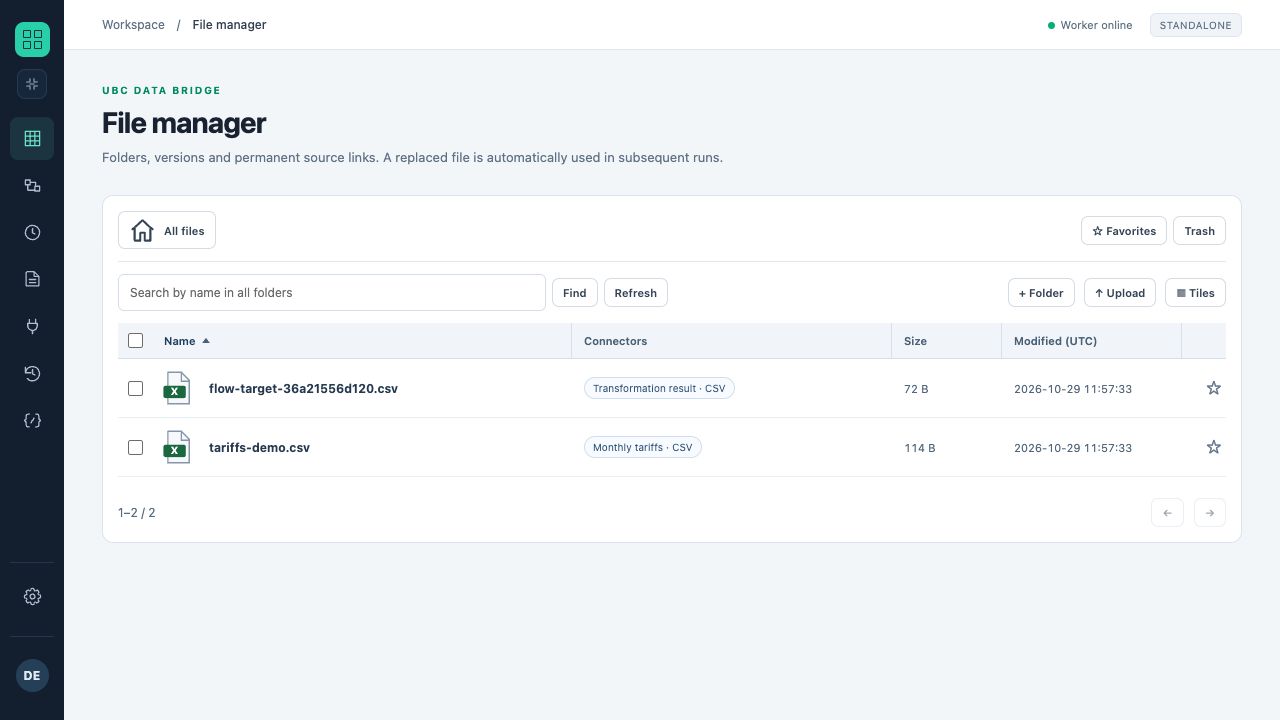
Sample files are linked to their respective sources. Folders, search, favorites, trash and file actions are available.
File Manager stores files usable in sources, destinations and message attachments. A managed file has a stable object and a sequence of versions. Uploading a new version updates data without rebuilding every reference.
Operations
- Create folders and organize datasets by process.
- Upload a file, open its preview and download a copy to your computer.
- Add a new version of an existing file.
- Review history and restore an available earlier version.
- Use a file as a flow result or message attachment.
Workspace settings
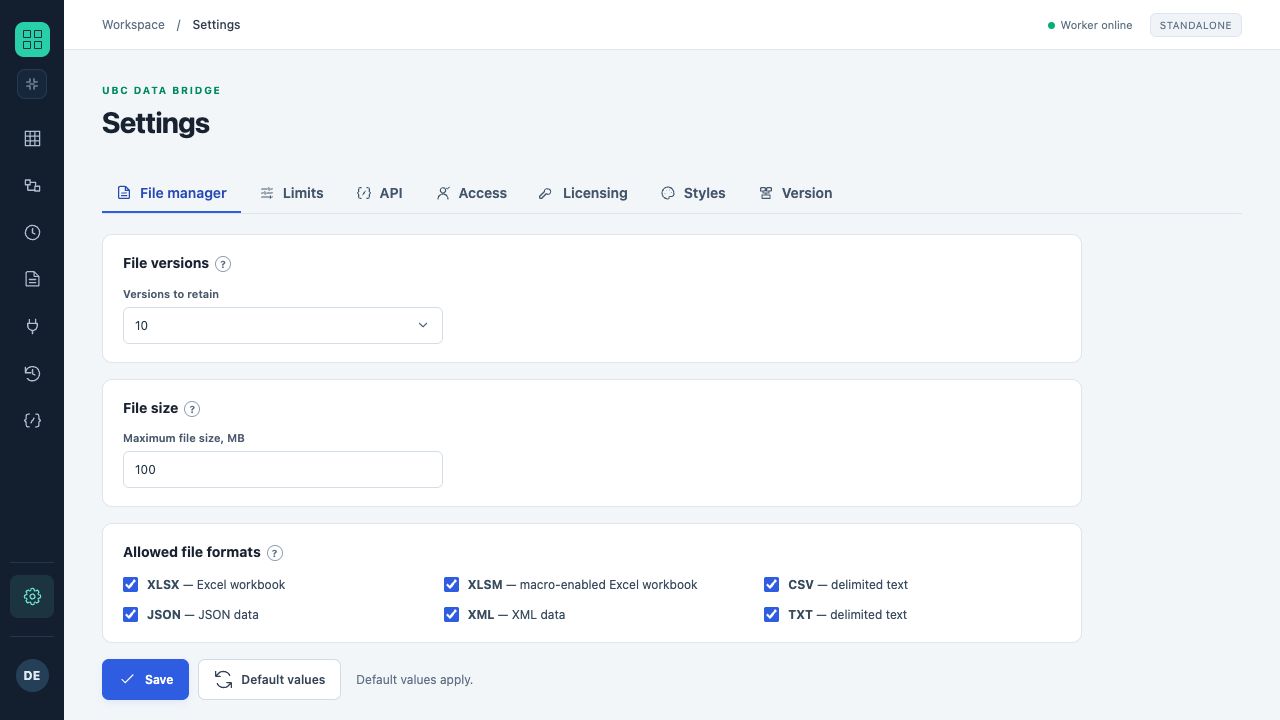
The administrator sets the version count, maximum size and allowed file formats in installation settings.
| Parameter | Default | Range |
|---|---|---|
| Retained versions | 10 | From 1 to 100, including the current version. |
| Upload size | 100 MiB | From 1 to 1024 MiB. |
| Allowed uploads | XLSX, XLSM, CSV, JSON, XML, TXT | The administrator can narrow the supported-format list. |
Permissions
A separate “File Manager” permission grants viewing and downloading. Manual changes and deletion are available to the administrator. A flow author can see the list to select a file in a block. File operations performed by the flow itself are governed by its execution permission.
Version used by a run
Run materials are fixed during preparation. Do not replace a file directly in storage outside the system: doing so breaks checksum validation. Use the standard new-version operation and revalidate dependent flows.
Search, selection and versions
File Manager supports list and tile views, name search, favorites, sorting, resizable columns and bulk actions. In an ordinary folder, “Select all” includes nested objects; search, favorites and trash use the current list. The context menu provides rename, copy, move and trash actions. Restoring a folder restores its contents. Restoring a file version creates a new current version while preserving source references. Use the file-transfer block for automated copying or moving between storage locations.