Purpose
Connects a file from “File sources” to the flow. The block uses the settings of the source and selected range; individual parameters can be overridden in the block. Excel, CSV, JSON and XML sources are supported; JSON and XML are read in this role.
Inputs and outputs
As a source, the block has no input and passes a table through out. As a target, in receives a table; optional success and failure outputs continue the flow according to the write result.
Parameters
| Parameter | Settings and values | Options and limits |
|---|---|---|
role | Block role: a source reads data; a target writes the result. | Options: source, target |
source_id | A registered file source; select it by name in the “File” field. | Up to 64 characters |
range_id | The source’s named range. An empty value means the default range. | Default: emptyUp to 64 characters |
options | Reading-parameter overrides for this block; empty values are inherited from the source. | |
clear_range | Clear the remainder of the configured range after writing; data outside it is unchanged. | Default: disabled |
ask_update | For a file in File Manager: request a new file of the same format during every manual run. | Default: disabled |
wizard | Show the block as a step in the execution wizard. | Default: disabled |
Reading parameters: options
| Parameter | What it configures |
|---|---|
selection_mode | Read specified cells or a workbook’s named range. |
defined_name | The name of a range defined in the Excel workbook. |
defined_scope | The scope of the named range: workbook or worksheet. |
sheet | The workbook’s worksheet name. |
range | A cell range in A1 notation, for example A1:F500. |
header | Treat the first row of the range as field names. |
delimiter | The text file’s field delimiter. |
json_path | The path to the array of records in a JSON document. |
xml_path | The path to the elements to read as XML rows. |
Step-by-step configuration
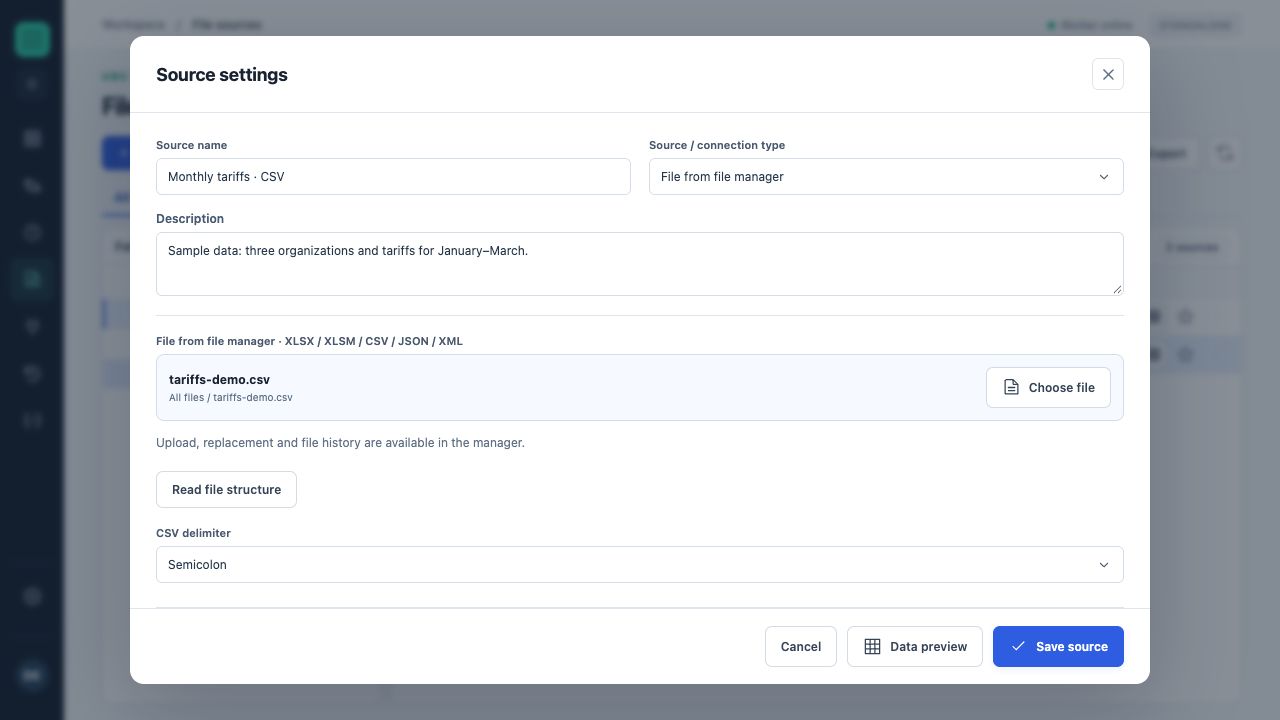
The source selects tariffs-demo.csv from File Manager and uses a semicolon delimiter. Ranges are configured further down this form.
- Add a file from the palette’s “Files” tab and select its source or target role.
- Select “Source range”. Check the worksheet, cells and headers; for JSON/XML, check the path to the records.
- For CSV, check the delimiter. If the block overrides the worksheet or cells, return to the source range or save the required range in the source.
- Enable the wizard for manual file selection; enable the updated-file request to require a new version to be uploaded.
- Read the fields and preview the sample. For a target, match the output table’s order/names and check the clearing option.
Rules and diagnostics
- Requesting an updated file works only for a source from File Manager and automatically enables the wizard. Such a flow requires user interaction and does not run automatically.
- After a successful step in a real run, the updated file is saved as a new version under the connected file’s name. A simulation does not save a new version.
- Without an update request, the wizard lets you choose a different source of the same format, range, worksheet and cells for the current run only. An automatic run reads the configured file.
- Changing the selected source or connection settings after confirming a step stops execution with REVISION_CHANGED: start a new run.
- During writing, clear_range clears only the remainder of the configured range. Before writing, ensure it does not include other data that must be retained.
Configuration example
Register “Sales.xlsx” and create a “Sales table” range on the Sales worksheet at A1:F5000. Select this range in the block, with role=source and header=true. Send the output to “Number and date formats”, then to “Grouping”.