1. Create a resource connection
In “Connections → REST API”, choose “Call an external API”. Set a clear name, the service's HTTPS base address and a relative resource path such as /orders. One connection describes a resource and request method. Create a separate connection for another resource or method so each integration's purpose and permissions remain explicit.
Do not append a query string after a question mark in the path. Enter base parameters one name=value per line; a source block can add its own parameters. Enter additional headers as Name: value. Secrets, including Authorization, belong in dedicated authentication fields rather than ordinary headers.
2. Configure authentication and networking
Choose a method supported by the external service: no authentication, Basic, Bearer, an API key in a header, or OAuth2 client credentials. Basic needs username and password; API key needs the header name and key; OAuth2 needs token endpoint, Client ID, client secret and any required scope. A Data Bridge inbound API key does not replace the external service's credentials.
Check DNS, port, TLS certificate trust and account permissions. For an internal resource, use an approved network route or configured UBC Agent. “Test” checks reachability; success does not guarantee permission to read every resource or write data. Save the connection after reviewing its diagnostics.
3. Read and parse the response
Use GET or POST for a source. POST reading has its own request body in the selected format; this differs from a destination sending table rows. Set the response format explicitly or detect it from Content-Type: JSON, XML, CSV/TSV or JSON Lines. Check encoding, delimiter and headers.
For the response below, the record path is data.items. XML needs an element path such as ./item; parent attributes can be included when required. Nested objects become dotted columns. Add the connection as a source and preview its fields before building a filter or mapping.
{"data":{"items":[{"orderId":"ORD-1042","status":"open","amount":1250}]}}4. Configure complete pagination
Match the service contract: one response, a next link in JSON/XML, a Link header, page number or offset. For page numbers, set the parameter name, first page and size; for offset, the offset parameter and batch size. For a body next-link, specify its exact path; the link must stay on the same server.
Limit the maximum pages and response-table size. A service using page and page_size, for example, cannot be read as offset pagination even if the first page looks correct. Verify at least two pages, a final incomplete page and absence of duplicate keys. Body next-links do not apply to CSV or JSON Lines.
5. Send rows through a destination
For writing, choose POST, PUT or PATCH and JSON, XML, form or CSV format. The destination constructs the body from its input table. JSON sends a row object or object array; optionally set the batch array key. XML needs a row element and batch root. Form data supports only one request per row. CSV includes headers and values.
Individual requests can use a path such as /orders/{{orderId}}. Set batch size according to the API, prepare a small test and verify the destination by key. PUT or PATCH semantics belong to the external service: do not assume automatic upsert or idempotency unless its contract defines them.
6. Check failures and the log
In “Settings → API → API limits”, the administrator controls retries, delays, Retry-After and the server circuit breaker. Temporary read failures may be retried; a write is retried only when it was definitely not accepted, such as connection failure before establishment or HTTP 429. A lost write response remains uncertain: reconcile the destination first.
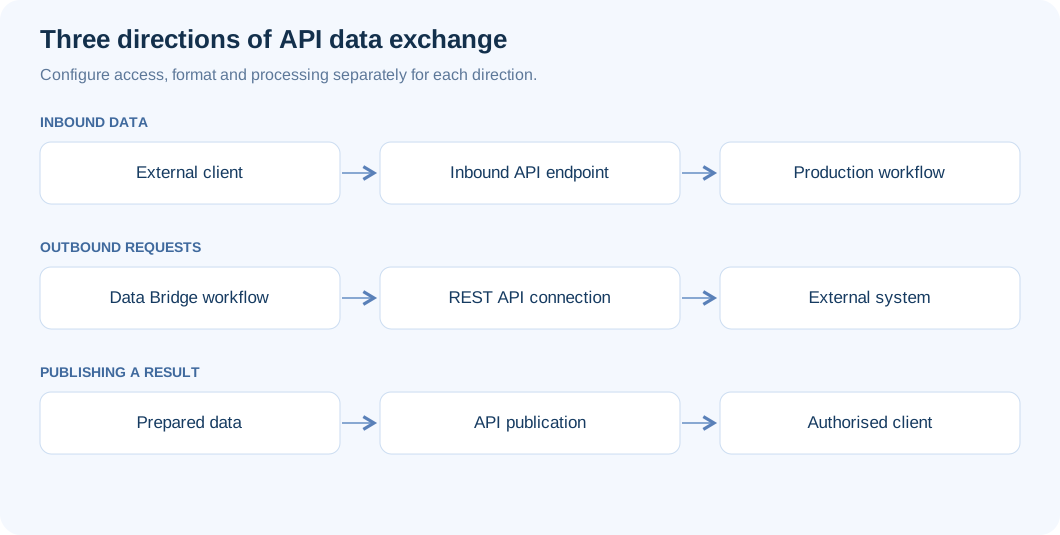
Use the block's “API requests” context-menu item to inspect method, address, status and duration. Test 401/403, empty responses, schema changes and page limits. Compare the log with the block result and final record count. Managed receipt of external requests uses a different direction: an inbound API endpoint.