Task and prerequisites
Read a semicolon-delimited sales file, preserve column names and produce JSON for the next integration.
This example uses demonstration data and settings. Validate the expected result in your own environment before connecting production destinations. Identifiers demo_* are illustrative: select your own training connections or sources in the editor. The JSON below shows the block and connection structure, not a ready-to-transfer flow archive.
Training input data
sales.csv
Order;Product;Qty
O-001;Tea;2
O-002;Coffee;3
Blocks, connections and exact settings
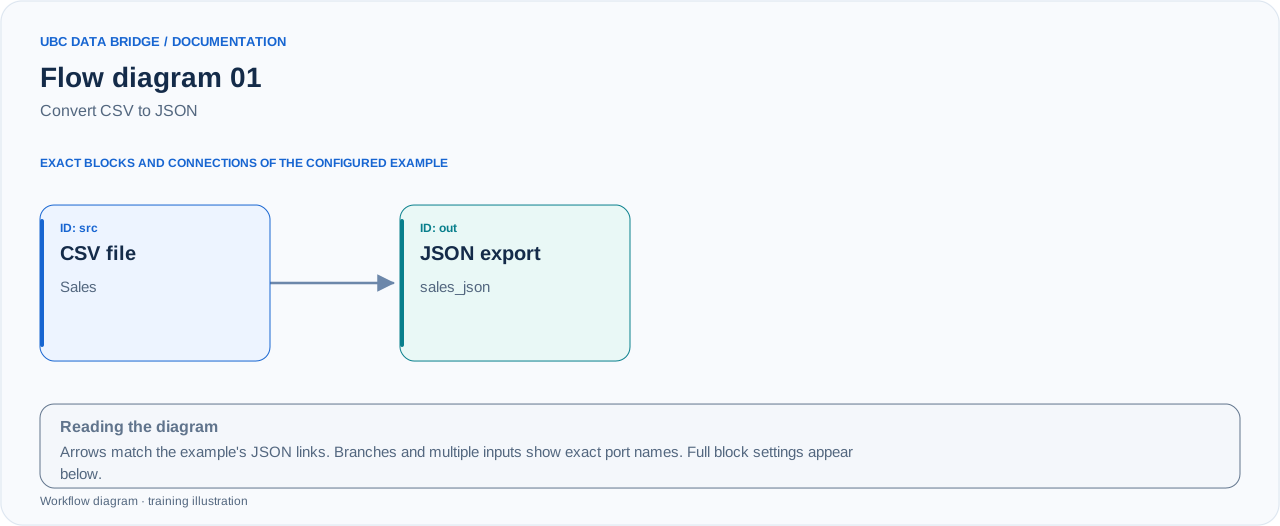
Example 01 topology: 2 blocks, 1 connection. Node identifiers and ports from the configured graph are preserved.
Add the listed blocks in the designer, open each block's properties and set these values. Names demo_* identify training sources and connections.
| Block | Setting |
|---|---|
| 1 File src |
|
| 2 Data export out |
|
Port connections
- src
out→ outin
Complete graph configuration as JSON
{
  "version": 3,
  "nodes": [
    {
      "id": "src",
      "type": "file",
      "label": "src",
      "config": {
        "role": "source",
        "source_id": "demo_sales",
        "options": {
          "sheet": "CSV",
          "range": "A1:C3",
          "header": true,
          "delimiter": ";"
        }
      }
    },
    {
      "id": "out",
      "type": "export",
      "label": "out",
      "config": {
        "format": "json",
        "filename": "sales_json",
        "destination": "download",
        "delimiter": ";",
        "timezone": "Europe/Kyiv"
      }
    }
  ],
  "edges": [
    {
      "source": "src",
      "target": "out",
      "source_port": "out",
      "target_port": "in"
    }
  ]
}
Expected result
| Order | Product | Qty |
|---|---|---|
| O-001 | Tea | 2 |
| O-002 | Coffee | 3 |
File sales_json.json contains two records. CSV does not specify data types: add an explicit conversion to guarantee a numeric Qty type.
Run and verify
- Upload sales.csv in “Sources” and select it in the src block.
- Check that range A1:C3 includes the header and two rows. Save the flow.
- Run the flow, open the export result and compare the two Order/Product pairs and Qty values.
Common errors
- If all data lands in one column, the wrong delimiter is selected.
- If you see a technical column name instead of Order, enable header.
- Do not specify A1:C2: the second record would fall outside the range.