Task and prerequisites
Prepare a wide Excel budget template for loading into a model with a period dimension.
This example uses demonstration data and settings. Validate the expected result in your own environment before connecting production destinations. Identifiers demo_* are illustrative: select your own training connections or sources in the editor. The JSON below shows the block and connection structure, not a ready-to-transfer flow archive.
Training input data
| Product | Jan | Feb |
|---|---|---|
| Tea | 100 | 120 |
| Coffee | 80 | 90 |
Blocks, connections and exact settings
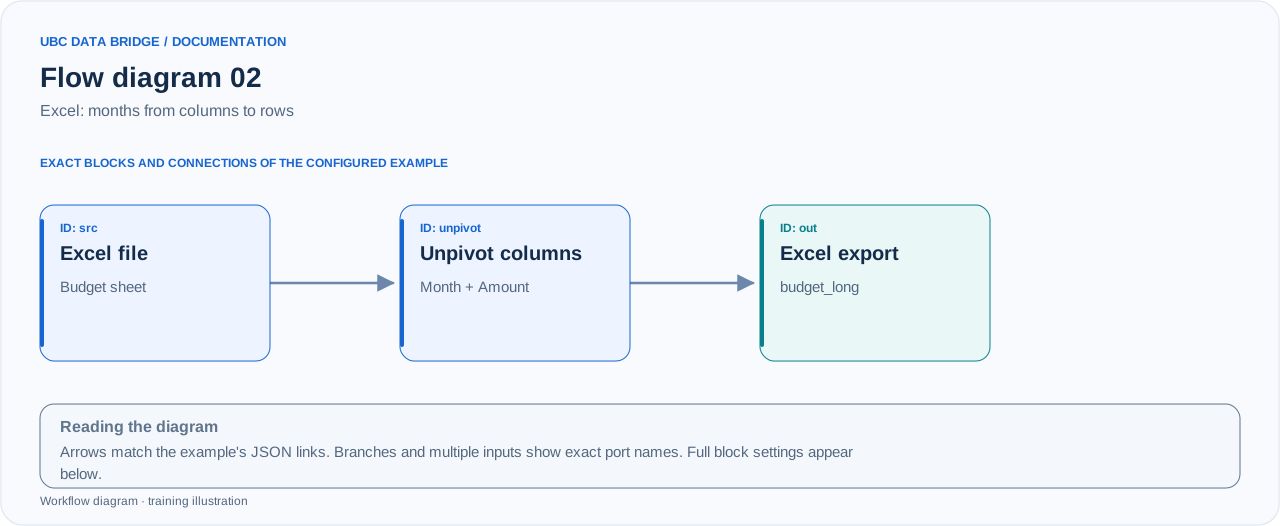
Example 02 topology: 3 blocks, 2 connections. Node identifiers and ports from the configured graph are preserved.
Add the listed blocks in the designer, open each block's properties and set these values. Names demo_* identify training sources and connections.
| Block | Setting |
|---|---|
| 1 File src |
|
| 2 Unpivot columns unpivot |
|
| 3 Data export out |
|
Port connections
- src
out→ unpivotin - unpivot
out→ outin
Complete graph configuration as JSON
{
  "version": 3,
  "nodes": [
    {
      "id": "src",
      "type": "file",
      "label": "src",
      "config": {
        "role": "source",
        "source_id": "demo_budget_xlsx",
        "options": {
          "sheet": "Budget",
          "range": "A1:C3",
          "header": true
        }
      }
    },
    {
      "id": "unpivot",
      "type": "unpivot",
      "label": "unpivot",
      "config": {
        "id_columns": [
          "Product"
        ],
        "period_column": "Month",
        "unpivot_value_column": "Amount"
      }
    },
    {
      "id": "out",
      "type": "export",
      "label": "out",
      "config": {
        "format": "xlsx",
        "filename": "budget_long",
        "destination": "download",
        "delimiter": ";",
        "timezone": "Europe/Kyiv"
      }
    }
  ],
  "edges": [
    {
      "source": "src",
      "target": "unpivot",
      "source_port": "out",
      "target_port": "in"
    },
    {
      "source": "unpivot",
      "target": "out",
      "source_port": "out",
      "target_port": "in"
    }
  ]
}
Expected result
| Product | Month | Amount |
|---|---|---|
| Tea | Jan | 100 |
| Tea | Feb | 120 |
| Coffee | Jan | 80 |
| Coffee | Feb | 90 |
The output contains 4 rows; Amount totals 390. Every column except Product becomes a Month value.
Run and verify
- Create budget.xlsx with a Budget sheet and the illustrated table in A1:C3.
- Set Product as the only identifier column; Month and Amount must be new names.
- Run the flow and check budget_long.xlsx: 4 rows and a total of 390.
Common errors
- If Jan is accidentally added to id_columns, that month will not be unpivoted.
- A helper Comment column also becomes a period unless removed before unpivoting.
- Month/Amount names must differ from each other and from Product.