Creation
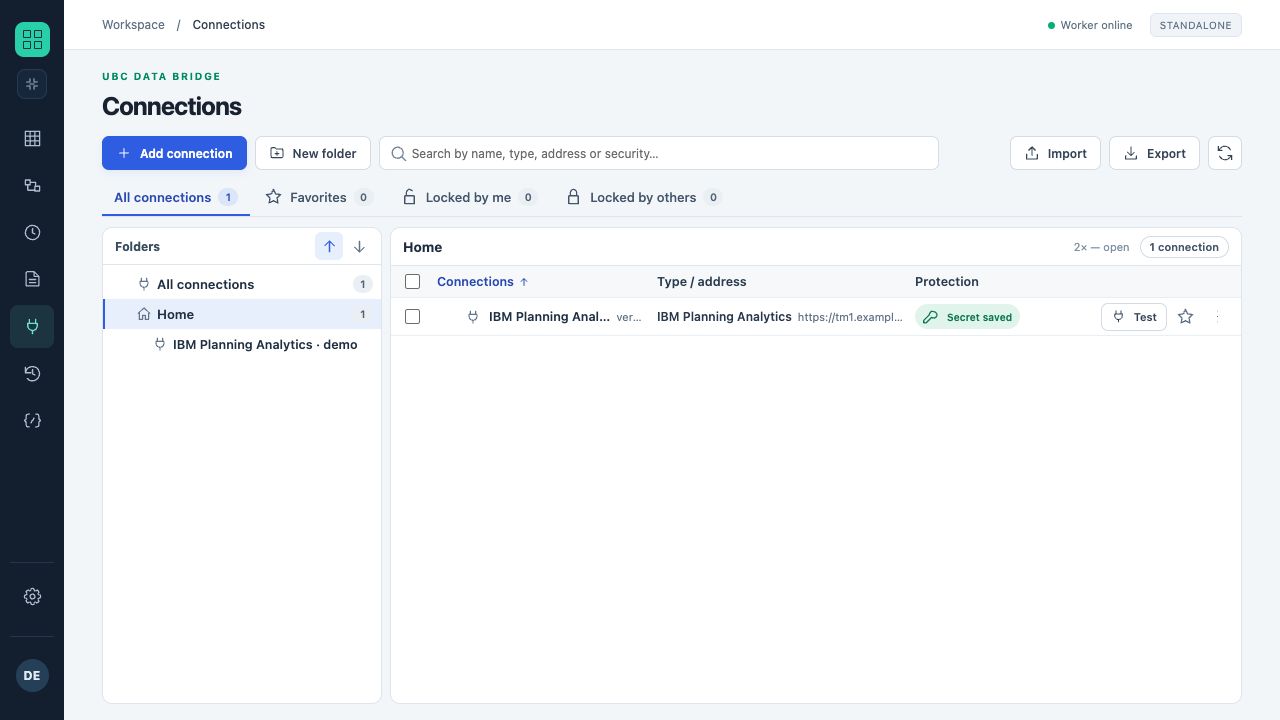
The library shows service type, address and whether a saved secret exists. The secret itself is not displayed.
- Open “Connections” and select a service from the required group.
- Give it a clear name that distinguishes test and production environments.
- Enter the address, login method and required fields. Enter the password or token in the separate secret field.
- Click “Test” and read the diagnostics.
- Save the connection and select it in a flow block.
What the test actually checks
The test confirms reachability and basic ability to access the service. It does not guarantee permission for every object or a future write. Check the required cube, table, resource or file separately. For SMTP and Telegram, testing a connection and sending a test message are different actions.
Secrets
Once saved, a secret is not returned to the interface in plain text. In an existing connection, an empty secret field usually preserves the current value. Do not put passwords in names, URLs, additional headers or flow comments.
Object and role in a flow
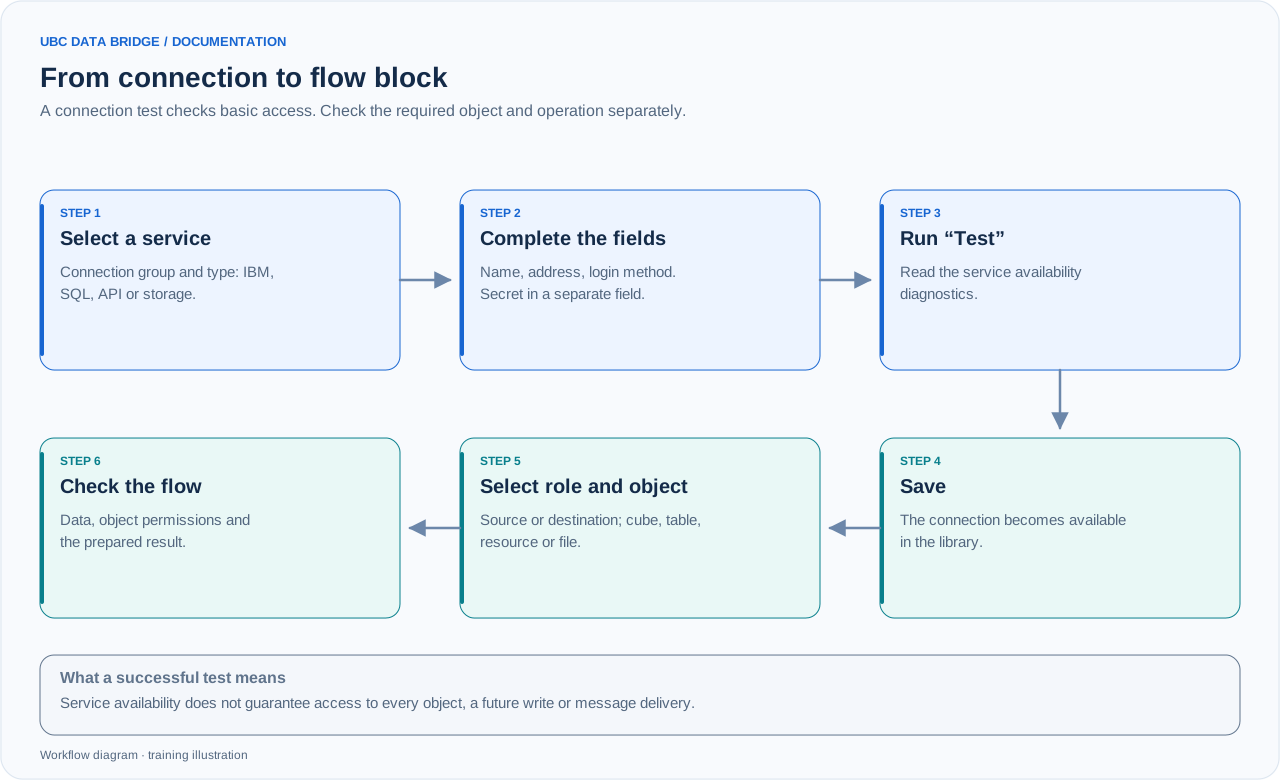
Six connection-setup steps: select service, complete fields, test, save, choose role and object in the flow, and verify the result.
A connection block selects a source or destination role and a specific object. Connector capabilities differ: ClickHouse only appends records; a REST source uses GET/POST and a destination POST/PUT/PATCH; messages use separate Email or Telegram blocks.
Diagnostics
Check the address and port, DNS/network, TLS, authentication method, object permissions and schema in that order. Copy the error code and run ID for the administrator. Do not include a secret with diagnostics.
Connection groups
| Group | Objects |
|---|---|
| Business systems | IBM Planning Analytics, UBC Analytics in its deployment mode, Microsoft Dynamics 365 and OData connections to business databases. |
| Databases | Microsoft SQL Server, Azure SQL, Oracle Database, IBM Db2, PostgreSQL, MySQL/MariaDB, ClickHouse, Redis and ODBC. |
| File storage | Google Drive/Sheets, OneDrive, S3, FTP/FTPS, network drives and a local folder through UBC Agent. |
| APIs and messages | REST API with three integration directions; SMTP and Telegram use their dedicated message blocks. |
BAS can use the published OData service of a compatible business database. Oracle JD Edwards can use a configured REST/Orchestrator interface or approved table exchange. For M.E.Doc, agree on the supported file or service exchange interface. Select the actual protocol type and check access to the required objects.
Direct or agent connection
In a compatible connection, “Connection method” selects access directly from Data Bridge or through a chosen agent. The resource address must be allowed for that agent and the agent must be available. Test with the same method the production flow will use. For local files, choose “Local folder (through UBC Agent)” rather than entering a user computer’s disk path into a server-side connection.