Task and prerequisites
Take the data.items array from JSON and create a flat CSV with a consistent column order.
This example uses demonstration data and settings. Validate the expected result in your own environment before connecting production destinations. Identifiers demo_* are illustrative: select your own training connections or sources in the editor. The JSON below shows the block and connection structure, not a ready-to-transfer flow archive.
Training input data
{
  "data": {
    "items": [
      {
        "sku": "T01",
        "name": "Tea",
        "stock": 12
      },
      {
        "sku": "C01",
        "name": "Coffee",
        "stock": 5
      }
    ]
  },
  "generated": "demo"
}
Blocks, connections and exact settings
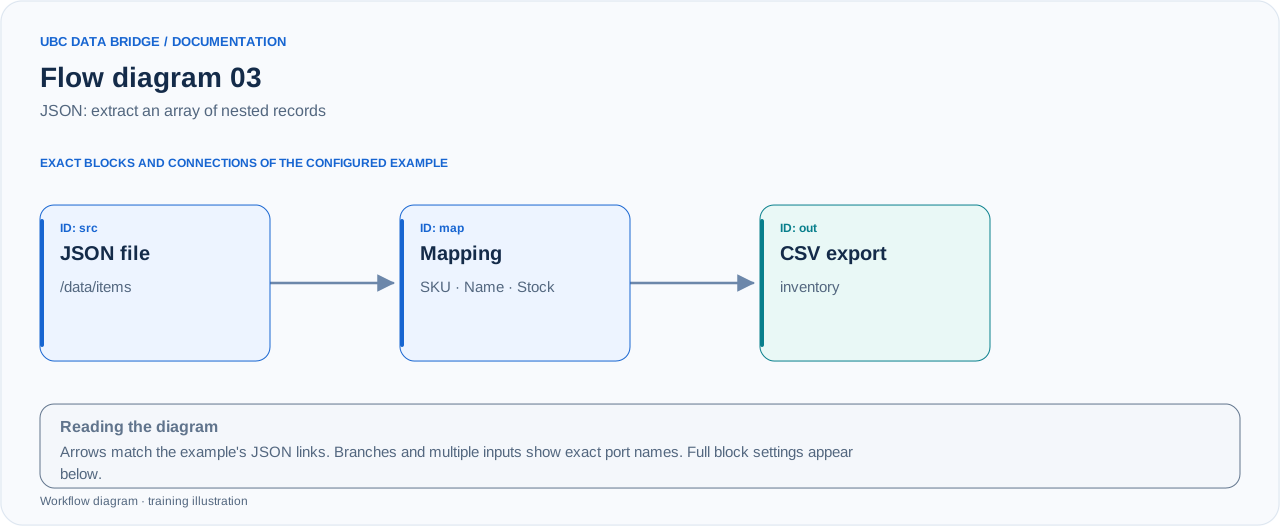
Example 03 topology: 3 blocks, 2 connections. Node identifiers and ports from the configured graph are preserved.
Add the listed blocks in the designer, open each block's properties and set these values. Names demo_* identify training sources and connections.
| Block | Setting |
|---|---|
| 1 File src |
|
| 2 Column mapping map |
|
| 3 Data export out |
|
Port connections
- src
out→ mapin - map
out→ outin
Complete graph configuration as JSON
{
  "version": 3,
  "nodes": [
    {
      "id": "src",
      "type": "file",
      "label": "src",
      "config": {
        "role": "source",
        "source_id": "demo_inventory_json",
        "options": {
          "json_path": "/data/items",
          "range": "A1:C3",
          "header": true
        }
      }
    },
    {
      "id": "map",
      "type": "mapping",
      "label": "map",
      "config": {
        "mode": "columns",
        "columns": [
          {
            "name": "SKU",
            "value": "sku"
          },
          {
            "name": "Name",
            "value": "name"
          },
          {
            "name": "Stock",
            "value": "stock"
          }
        ]
      }
    },
    {
      "id": "out",
      "type": "export",
      "label": "out",
      "config": {
        "format": "csv",
        "filename": "inventory",
        "destination": "download",
        "delimiter": ";",
        "timezone": "Europe/Kyiv"
      }
    }
  ],
  "edges": [
    {
      "source": "src",
      "target": "map",
      "source_port": "out",
      "target_port": "in"
    },
    {
      "source": "map",
      "target": "out",
      "source_port": "out",
      "target_port": "in"
    }
  ]
}
Expected result
| SKU | Name | Stock |
|---|---|---|
| T01 | Tea | 12 |
| C01 | Coffee | 5 |
Run and verify
- Save the illustrated JSON as inventory.json and add it as a file source.
- Set json_path=/data/items and use the exact original names sku, name and stock in mapping.
- Run and check inventory.csv: two rows, without the generated metadata field.
Common errors
- The file source uses JSON Pointer /data/items. This differs from the data.items path in a REST API connection.
- The path must lead to records: an error in items produces a missing path or incorrect structure.
- Mapping requires exact field names; SKU is the output name and sku the input name.