Task and prerequisites
Select repeating XML elements, use the id attribute as the code and write the catalog to Excel.
This example uses demonstration data and settings. Validate the expected result in your own environment before connecting production destinations. Identifiers demo_* are illustrative: select your own training connections or sources in the editor. The JSON below shows the block and connection structure, not a ready-to-transfer flow archive.
Training input data
<catalog><item id="T01"><name>Tea</name><unit>pack</unit></item><item id="C01"><name>Coffee</name><unit>bag</unit></item></catalog>Blocks, connections and exact settings
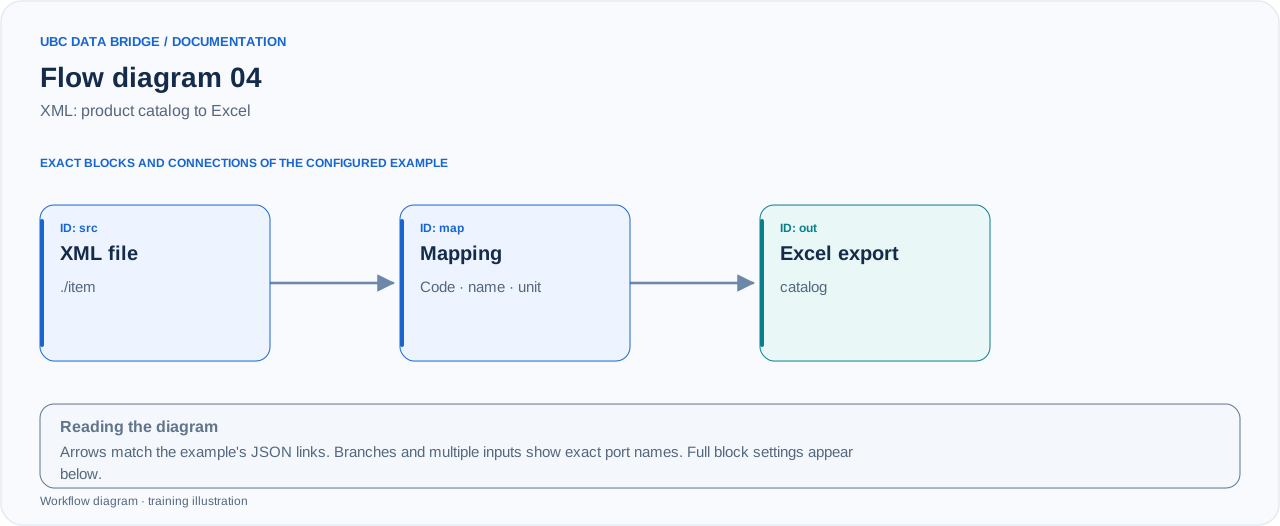
Example 04 topology: 3 blocks, 2 connections. Node identifiers and ports from the configured graph are preserved.
Add the listed blocks in the designer, open each block's properties and set these values. Names demo_* identify training sources and connections.
| Block | Setting |
|---|---|
| 1 File src |
|
| 2 Column mapping map |
|
| 3 Data export out |
|
Port connections
- src
out→ mapin - map
out→ outin
Complete graph configuration as JSON
{
  "version": 3,
  "nodes": [
    {
      "id": "src",
      "type": "file",
      "label": "src",
      "config": {
        "role": "source",
        "source_id": "demo_catalog_xml",
        "options": {
          "xml_path": "./item",
          "range": "A1:C3",
          "header": true
        }
      }
    },
    {
      "id": "map",
      "type": "mapping",
      "label": "map",
      "config": {
        "mode": "columns",
        "columns": [
          {
            "name": "ProductCode",
            "value": "@id"
          },
          {
            "name": "ProductName",
            "value": "name"
          },
          {
            "name": "Unit",
            "value": "unit"
          }
        ]
      }
    },
    {
      "id": "out",
      "type": "export",
      "label": "out",
      "config": {
        "format": "xlsx",
        "filename": "catalog",
        "destination": "download",
        "delimiter": ";",
        "timezone": "Europe/Kyiv"
      }
    }
  ],
  "edges": [
    {
      "source": "src",
      "target": "map",
      "source_port": "out",
      "target_port": "in"
    },
    {
      "source": "map",
      "target": "out",
      "source_port": "out",
      "target_port": "in"
    }
  ]
}
Expected result
| ProductCode | ProductName | Unit |
|---|---|---|
| T01 | Tea | pack |
| C01 | Coffee | bag |
Run and verify
- Upload the XML as catalog.xml. Select path ./item from the catalog root.
- Check the source's available fields: @id, name and unit.
- Run the flow; catalog.xlsx should contain 2 products and 3 columns.
Common errors
- The id attribute is available as @id, not id.
- Path ./catalog/item is redundant if catalog is already the document root.
- Repeated nested tags can produce complex values; this example deliberately uses simple elements.