Connect your data to IBM Planning Analytics
Load data from files and business systems into IBM Planning Analytics. Data Bridge prepares it for analytics cubes, updates reference data and runs processes. Users can start from a button in IBM Planning Analytics Workspace, choose parameters and review the result.
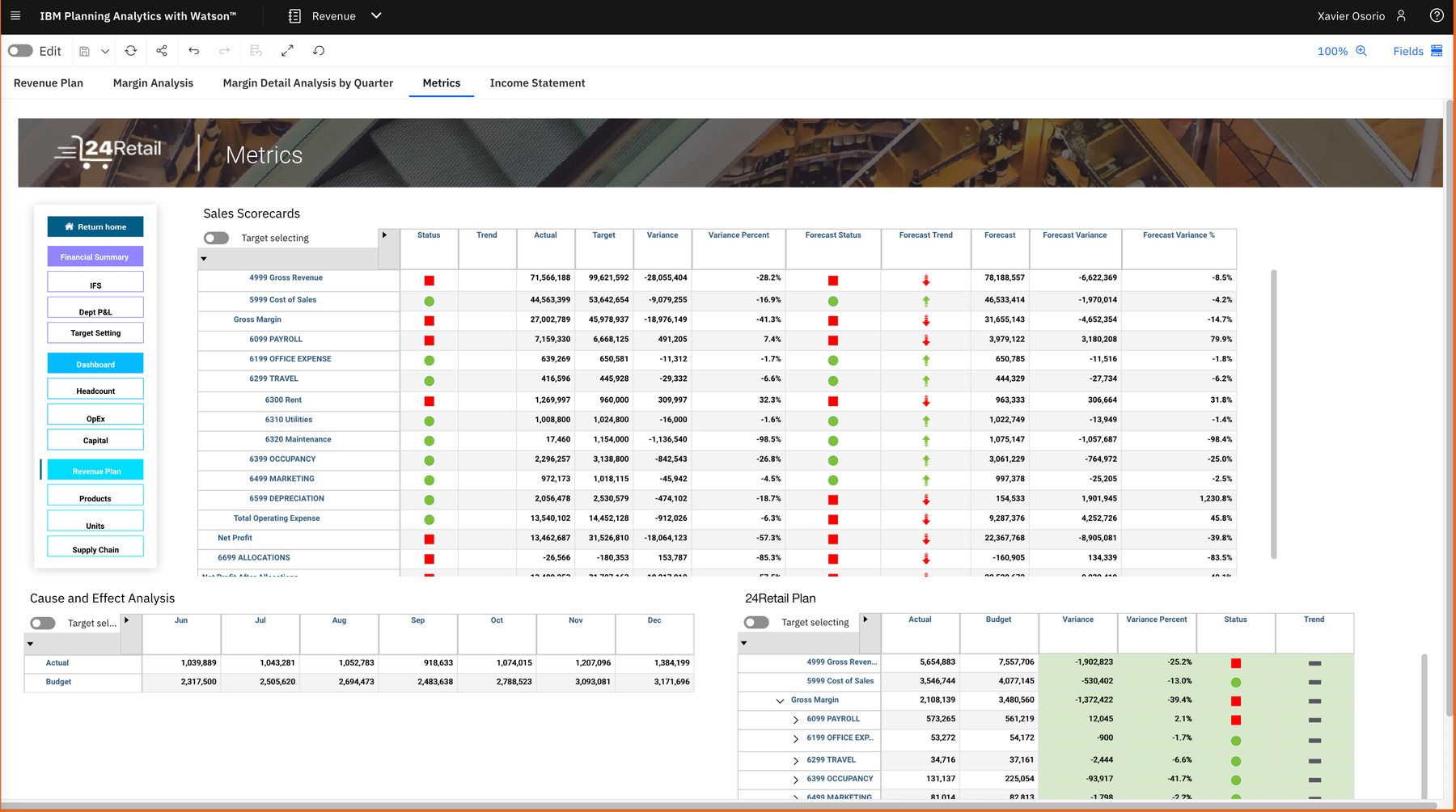
Less manual data preparation for planning and reporting
Cubes, reference structures and server processes in one controlled flow
Convenient IBM Planning Analytics Workspace execution with clear permissions and outcomes
Deploy Data Bridge alongside IBM Planning Analytics
Deploy Data Bridge as a separate service in your corporate infrastructure or an approved cloud environment. It connects to TM1 through the REST API and maintains its own flows, connections and history. Administrators define the HTTPS address, network access and sign-in method; the interface can use a corporate /databridge path. This fits data exchange into your existing IBM Planning Analytics architecture. Verify a test slice, certificates and permissions before production. For local sources, use connections reachable from the server or approved UBC Agent resources.
- Separate deployment alongside IBM Planning Analytics components
- Files, SQL and APIs reached through agreed network rules
- Scenario verification before production publication
Sign in with your Cognos account
A standalone installation can use IBM Planning Analytics / Cognos CAM sign-in. Users authenticate on the Cognos page, and Data Bridge verifies their identity and groups through the configured TM1 database. When the corresponding IBM session is active and browser and gateway conditions are configured, users need not enter their password again. Administrators align the Cognos gateway, namespace, secure return addresses and certificate trust. To write with personal permissions, select “From user session” in the TM1 connection. For automated jobs, configure a suitable separate authentication method using saved credentials.
- User and group verification by TM1
- Existing IBM session reuse with configured CAM
- Separate authentication choices for interactive and unattended runs
Agree the environment and access
Define the Data Bridge address, TM1 database, authentication and owners. Verify networking, certificates and a test slice.
Build the first scenario
Connect a source, prepare fields and configure dimension updates and cube coordinates. Add a TI process and message when needed.
Verify the model and permissions
Complete simulation and a control write. Reconcile totals, elements and diagnostics, then test as an ordinary user.
Publish the IBM Planning Analytics Workspace action
Enable the button, insert its URL into the book and test the complete path: file, parameters, write and view refresh.
Assign access to users and groups
Administrators can refresh the user list from TM1; it also grows when users first sign in. Operational roles are created in Data Bridge and assigned to people or exact TM1 groups. Assign finance users execution, analysts editing and support staff the required history. This uses corporate groups while keeping integration permissions explicit. CAM membership is rechecked, by default every 60 seconds; changes must first become visible in Cognos/TM1. Data Bridge roles are not automatically copied from every IBM Planning Analytics security setting: administrators define the mapping, while IBM retains control over its own objects.
- TM1 user-list refresh and registration on first sign-in
- Data Bridge role assignment to people or TM1 groups
- Separate flow view, execution and editing permissions
Read data from cubes and reference lists
The built-in connector accesses TM1 cubes, public views, dimensions, hierarchies, elements and attributes. Cube data becomes a table of coordinates and values ready for further work: comparing ERP actuals, calculating variances or delivering a prepared dataset to another service. Choose leaf elements, consolidated elements or both according to the task. Export reference structures with relationships, levels and attributes to retain model context. TM1 subsets can narrow the elements offered in user-run parameters. A planning model can therefore serve as both a destination and an input to a wider data process.
- Cubes and public views as tabular sources
- Dimensions, hierarchy relationships, attributes and aliases
- Accessible public or private subsets for parameter selection
Conditions · choice · context
Update dimensions and hierarchies
A new product or department need not require a separate manual dimension-preparation step. The IBM “Dimension” destination adds missing principal elements, updates a selected numeric, text or alias attribute, and builds hierarchy relationships from table columns. A parent can come from a constant, run parameter or column; missing consolidated parents can be created when configured. Existing relationships remain intact, while checks identify cycles, incompatible types and conflicting values before changes. For example, load a “Region → Store” structure, update store descriptions and then use the same codes to write sales into a cube.
- Element creation and parent-to-child relationship construction
- One selected attribute updated by each configured destination
- Hierarchy and alias uniqueness checks before changes
Write data to the right cube cells
Map each cube dimension to a source column, constant or run parameter. Users choose the period in a form, the company comes from the file, and the “Actual” version is fixed in settings. A mapping table reconciles codes across systems; a selected alias attribute resolves recognizable labels to principal element names. Before writing, the system checks resolved coordinates, empty values and duplicates. Numeric duplicates can be summed when configured; other situations can stop with an explanation. Unpivot wide budget spreadsheets from period columns into rows before applying the mapping.
- Column, constant or run parameter for every dimension
- Code mapping and selected alias resolution
- Checks for duplicate coordinates, formats and missing values
Conditions · choice · context
Check the result of each load
Choose replacement or addition to existing values, and optionally clear an agreed slice or the entire cube before loading. Clearing boundaries can use selected elements, input data or parameters. Simulation performs reads, preparation and checks without writing to IBM; checks cover writable cells, consolidations and rule-derived values. Production writes proceed in confirmed batches. If a response is lost, the log distinguishes an unconfirmed outcome from success: reconcile target cells before deciding what to repeat. Multiple batches and systems do not form a shared transaction with automatic rollback. For UBC Analytics forms, a separate transactional-addition mode transfers the difference between a record’s previous and new data into the cube.
- Simulation and target-cell access validation
- Defined clearing scope and agreed write method
- Confirmed-batch tracking and uncertain-outcome diagnostics
Run existing TurboIntegrator processes
Retain the server logic that already embodies your model’s expertise. The “Run TurboIntegrator process” destination calls an existing TI process with parameters from constants, a run form or table columns. After preparing a file and loading actuals, for example, perform an agreed recalculation for selected companies. With column-based parameters, the process runs sequentially for unique combinations, and a failed invocation stops subsequent calls. Simulation checks the invocation contract; the TI body executes during a production run. One flow connects preparation, writes and server actions.
- Available TI process selection and parameter mapping
- Sequential calls for unique input-parameter combinations
- Failure diagnostics with process and parameter context
Conditions · choice · context
Start actions from a IBM Planning Analytics Workspace button
Place an “Update financial model” button beside the report. In Data Bridge, enable the flow button, configure the permitted IBM Planning Analytics Workspace address, users and appearance, then insert its URL into a IBM Planning Analytics Workspace Webpage widget. Choose a neutral, blue or soft-green treatment: background, font, border and size are configurable. Users launch a prepared Production flow instead of editing its logic. Indicators show processing, waiting for action, success or a problem; status details and history provide context. After writing, refresh the relevant IBM Planning Analytics Workspace view and verify the slice. Supply book context through agreed scenario parameters: the button does not automatically inherit every widget’s filters.
- URL-based Webpage embedding without additional book code
- Button styling aligned with the working page
- Queue, running, waiting, success and problem-result indicators
Follow the steps in one window
Give finance users a simple sequence: select a file, choose period and company, inspect prepared data and continue to writing. An element selector can read accessible TM1 dimensions, hierarchies and subsets. Required values and file validation explain what needs correcting before continuation. The title, dimensions and control labels of a separate parameter dialog are configurable. With matching protocol, domain and port, the wizard can appear over the book; across different origins, it opens in a centered browser window. The book widget stays a compact button, and another click returns to the active wizard.
- File replacement, parameters, data preview and messages in one scenario
- Model-based choices instead of manually typed codes
- A full dialog or separate window according to deployment
See who ran a process and when
IBM Planning Analytics Workspace book permissions, Data Bridge execution rights and TM1 object permissions are checked at their respective levels. With saved IBM credentials, the connection account applies; personal-session mode uses the rights of the user starting an interactive run. Agree this choice for each process before publishing its button. History shows the flow version, stages, parameters and outcome, helping support investigate failures or partial writes. The button does not disguise uncertainty as a green success indicator: distinct states include “Partial result” and “Reconciliation required”.
- Separate IBM Planning Analytics Workspace, Data Bridge and TM1 permission checks
- Run history with parameters, stages and diagnostics
- Reconcile partial or unconfirmed outcomes before retrying
Your questions, answered.
How to connect your data, manage access and get started.
Must the existing IBM Planning Analytics model change?
You can start with existing cubes, public views, dimensions and TI processes. Data Bridge adds a controlled data route. Model structures change only through destinations where you explicitly configure the relevant actions.
Can users sign in without another password?
Yes, with configured CAM and a suitable active Cognos session. Network addresses, frame permissions and cookies must match the configuration. If automatic checking is unavailable, users complete normal IBM sign-in in a new tab.
Are all IBM Planning Analytics roles synchronized automatically?
The user list is refreshed from TM1 or populated on sign-in. Administrators create Data Bridge roles and link them to people or TM1 groups. Membership is rechecked; TM1 continues enforcing permissions on IBM objects.
Can the wizard feel part of IBM Planning Analytics Workspace?
Style the button to fit the book and provide sequential file, parameter and preview steps. A shared origin supports a dialog over the book; different origins use a separate browser window, for which pop-ups must be permitted.
What if execution stops after part of a write?
Check status, history and actual IBM values before retrying. Confirmed batches may already be applied. Closing the active wizard cancels further execution but does not undo actions already performed by an external system.
Let’s start with your task.
Tell us which data you need to connect. We will explain how it works and show you an example.
Bring your challenge. See a way forward.
Sources, rules and outcomes — let’s build the conversation around your workflow.