Start a workflow with one button
Add a button to IBM Planning Analytics Workspace, UBC Analytics or a company webpage. Users choose parameters or a file, start the workflow and see its status in a familiar interface.
A link-based launch inside the working interface
Parameters and wizard steps tailored to the scenario
Execution status without the editor
A clear action. Your visual style.
Name the button after its result: “Refresh data,” “Load actuals” or “Place a request.” Set the background, text color and size, and border visibility, color and width. The button fits your page and tells people what a click will do.
- Primary, outlined or compact appearance
- A caption and style suited to the task and interface
- Try changing the caption and style in the demo
Put the workflow where people work
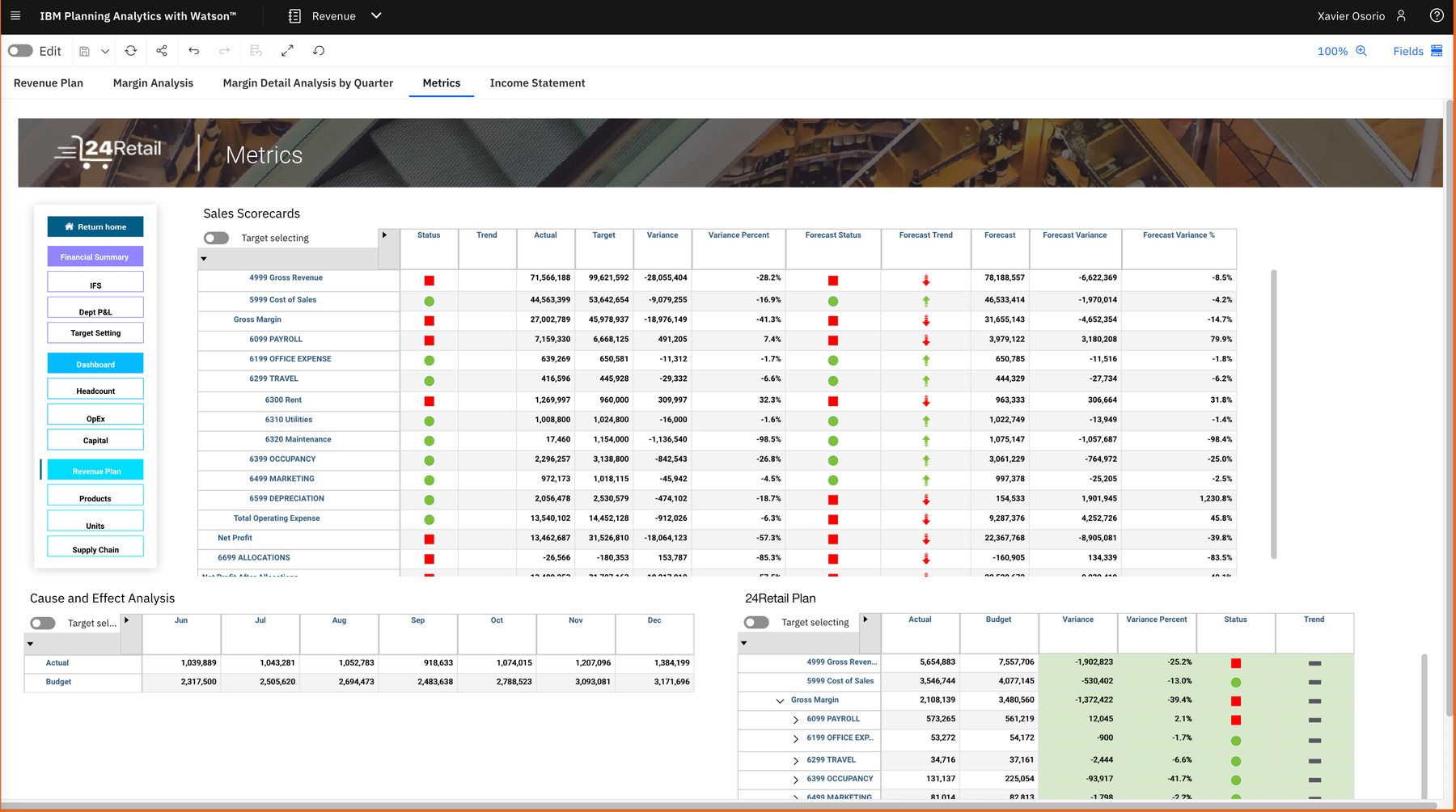
Add the button to an approved page in your system, UBC Analytics or an IBM Planning Analytics Workspace book. People stay in a familiar interface while the workflow handles data preparation, checks and exchange.
- Enable the button in the flow settings and copy its link
- Specify permitted page origins and users
- The embedding link contains no passwords or keys
Guide people through the right steps
The wizard asks only for what your scenario needs: a file, period, company, version or other parameters. It can then show a data preview and the outcome. Required fields are checked before continuing. Embedding across different sites uses a separate wizard window.
- Parameters, file uploads, tables and messages
- Clear steps without opening the flow editor
- Execution continues with the values entered by the user
Show the state, not just a button
People can see whether a task is accepted, running or waiting for their input. The button distinguishes success, error, a partial result and a need for reconciliation. If a write is unconfirmed, verify the destination before running again.
- Queued, running and waiting for user action
- Success, error, partial result and reconciliation
- A visible state helps people choose the next step
Allow specific people and pages to launch
Configure the exact website origins that can embed the button and the operators allowed to use it. A session ties each action to a user; launch permission does not grant editing rights. Access and authority are also checked before data is written.
- HTTPS and an allowlist of embedding origins
- Selected users or permitted operators
- Revoke access and check authority during execution
One request. A complete business process.
Place a “Place a request” button in a customer portal or on a website page. After signing in, an authorized user enters their details and order. The flow validates the fields, sends a purchase order, creates or updates the customer in CRM, and sends email and Telegram notifications through configured connections.
- Form data moves straight into execution
- Related actions and their outcomes in one run
- For an open form without sign-in, use a separately configured API endpoint with access and validation rules
Your questions, answered.
How to connect your data, manage access and get started.
Do users need access to the flow editor?
Operators and launch permissions are configured for the button. Using it does not require permission to edit the flow diagram.
Why does the wizard open another window?
An embedded webpage is confined to its frame. A separate window gives the wizard enough space; the browser may require permission to open pop-ups.
What happens when an active wizard is closed?
Closing the window stops the run. Check its status before restarting, particularly if writes have already occurred.
Let’s start with your task.
Tell us which data you need to connect. We will explain how it works and show you an example.
Bring your challenge. See a way forward.
Sources, rules and outcomes — let’s build the conversation around your workflow.